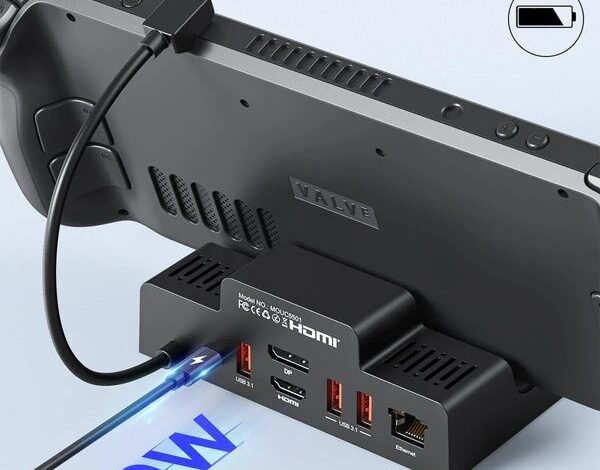
You’ve been gaming on your Steam Deck for months now, reveling in the freedom of playing AAA titles anywhere. But when you settle in at home, squinting at that 7-inch screen while your big-screen TV sits idle feels like a compromise. The Steam Deck packs desktop-class power into a handheld form, yet without the right accessories, you’re missing out on half of what makes it revolutionary. A docking station bridges this gap, transforming your portable powerhouse into a legitimate desktop gaming setup. Instead of choosing between mobility and comfort, you can have both. This guide cuts through the confusion of dock options and shows you exactly how to select and set up the right docking station for your needs. Whether you want to connect to your living room TV for couch gaming sessions, plug in a keyboard and mouse for strategy games, or simply charge while playing on a larger display, the right dock unlocks experiences that the handheld mode alone simply can’t deliver.
Why Your Steam Deck Needs a Docking Station
The Steam Deck delivers remarkable gaming performance in handheld mode, but its 7-inch display and limited ports create inherent constraints. When you’re at home, the experience shifts dramatically with a steam deck docking station. Instead of hunching over a small screen, you can connect to your living room TV or desktop monitor for immersive big-screen gameplay that rivals traditional consoles. The difference becomes especially pronounced in visually stunning titles where details matter, or in multiplayer sessions where everyone can watch the action unfold together.
Beyond display expansion, a dock addresses practical connectivity challenges that handheld-only use can’t solve. You gain the ability to plug in full-sized keyboards and mice for games that demand precision input, connect wired controllers for lag-free competitive play, and access external storage drives to expand your game library without relying solely on microSD cards. The dock simultaneously charges your Steam Deck during extended gaming sessions, eliminating the anxiety of watching your battery percentage drop mid-game. For online multiplayer enthusiasts, an Ethernet port provides stable, low-latency connections that Wi-Fi simply can’t match. This transformation turns your portable device into a versatile gaming hub that adapts to how you want to play, whether that’s serious desk gaming or relaxed couch sessions with friends.
Key Features to Look for in a Steam Deck Dock
Essential Ports and Connectivity
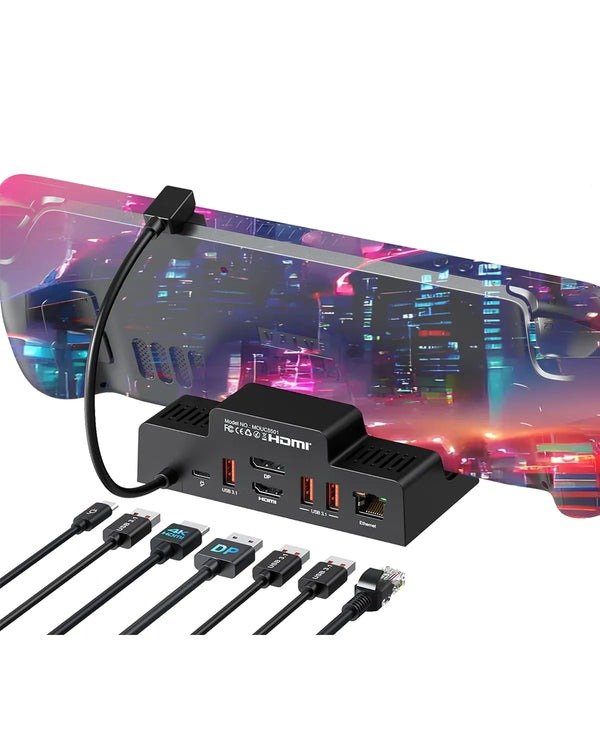
The foundation of any capable dock lies in its port selection. An HDMI 2.0 or DisplayPort output is non-negotiable for connecting to your TV or monitor, supporting resolutions up to 4K at 60Hz for crisp visuals. You’ll want at least two USB-A 3.0 ports to accommodate gaming peripherals simultaneously—think wireless keyboard dongles, mice, external controllers, or even a USB headset. A dedicated USB-C port with Power Delivery ensures your Steam Deck charges while you play. For competitive gamers or anyone with unreliable Wi-Fi, a Gigabit Ethernet port eliminates lag spikes and connection drops during crucial online matches. Some premium docks add SD card readers for quick file transfers, though this remains optional for most users.
Power Delivery and Charging
Your dock must supply adequate power to charge the Steam Deck while running demanding games. Look for docks rated at 45W or higher through USB-C Power Delivery. Anything less risks slow charging or even battery drain during intensive sessions, defeating the purpose of docked play. Many budget docks skimp here, advertising compatibility but failing under load when you’re running Elden Ring at high settings. Verify the dock’s power adapter meets this threshold—some third-party options require you to use the Steam Deck’s original charger, which works perfectly if the dock supports passthrough charging at full wattage.
Build Quality and Design
A well-designed dock provides a stable cradle that securely holds your Steam Deck without wobbling during gameplay. Rubberized grips or weighted bases prevent accidental disconnections when you reach for a controller. Adequate ventilation around the device prevents heat buildup during extended sessions. Cable management features keep your setup tidy, while a compact footprint fits naturally beside your TV or on your desk without dominating the space. The aesthetic should complement your gaming area rather than clash with it.
Top Docking Station Solutions for Gamers
The Official Steam Deck Dock
Valve’s official dock offers the most straightforward experience with guaranteed compatibility and seamless integration. It features three USB-A 3.1 ports, Gigabit Ethernet, DisplayPort 1.4, and HDMI 2.0 output supporting up to 4K at 60Hz or 1440p at 120Hz. The dock automatically triggers Desktop Mode when connected, requiring zero configuration. Its compact design includes a subtle Steam logo and matches the Deck’s aesthetic perfectly. The main drawback is limited expandability—you get exactly what’s included with no bonus features like SD card readers or extra USB-C ports that some third-party alternatives provide.
Third-Party Contenders: Value and Features
Third-party options deliver comparable functionality at more accessible price points while often adding extra features. Many include additional USB ports for connecting more gaming accessories simultaneously, built-in SD card readers for quick media transfers, and more flexible form factors that fit various desk setups. MOKiN docking stations, for example, emphasize robust power delivery and multi-monitor support, making them suitable for gamers building comprehensive desktop stations. Other popular alternatives from JSAUX and iVoler offer similar port configurations with varying design approaches—some prioritize portability with foldable designs, while others focus on maximum connectivity with six or more ports. The trade-off is occasionally needing firmware updates or troubleshooting compatibility quirks that the official dock sidesteps entirely.
Choosing the Right Dock for Your Needs
Your ideal dock depends on three factors: budget constraints, your primary use case, and required connectivity. If you primarily connect to one TV for couch gaming and want zero-hassle setup, the official dock justifies its premium. For desk-based gamers who need multiple peripherals connected—external drives, webcams, USB microphones, and dual monitors—third-party options with expanded ports provide better value. Budget-conscious players should prioritize docks with verified 45W+ power delivery and HDMI 2.0 as non-negotiables, then add features based on available funds. Consider whether you’ll frequently move the dock between locations, which favors compact designs, or if it’ll remain stationary where cable management and stability matter more.
Step-by-Step Guide: Setting Up Your Docked Gaming Station
Physical Connection and Desktop Mode
Start by plugging the dock’s power adapter into a wall outlet, then connect your HDMI cable from the dock to your TV or monitor. Insert your Steam Deck into the dock’s USB-C port—you’ll hear a subtle connection sound. The Steam Deck automatically detects the external display and switches to Desktop Mode within seconds. If it doesn’t switch automatically, press the Steam button, navigate to Power, and select “Switch to Desktop.” Your TV should now display the SteamOS desktop interface, confirming successful connection.
Configuring Display and Audio Settings
Right-click the desktop and select Display Configuration to adjust your screen settings. Set your preferred resolution—1080p for most TVs or 1440p/4K if your display supports it. Match the refresh rate to your monitor’s capabilities, typically 60Hz for TVs or up to 120Hz for gaming monitors. For audio, click the speaker icon in the system tray and select your TV or monitor as the output device. Test the sound by playing a game or video. If audio doesn’t route correctly, open System Settings, navigate to Audio, and manually set your HDMI output as the default device.
Connecting Your Gaming Accessories
For wired peripherals, simply plug controllers, keyboards, or mice into the dock’s USB-A ports—they work instantly without configuration. For Bluetooth devices, open System Settings, select Bluetooth, enable it, and put your controller or keyboard in pairing mode. Select the device from the list when it appears. To manage multiple peripherals efficiently, assign specific ports for each device to avoid USB bandwidth conflicts during intense gaming sessions.
Transform Your Gaming Experience Today
A docking station fundamentally transforms your Steam Deck from a capable portable device into a complete home gaming system that rivals traditional consoles. By adding the right dock, you solve the core limitations of handheld-only play—restricted screen size, limited connectivity, and battery constraints—while preserving the freedom to take your games anywhere. Whether you choose Valve’s official solution for guaranteed compatibility or explore feature-rich alternatives for expanded connectivity, you’re investing in a more versatile gaming experience. The ability to seamlessly transition from on-the-go sessions to big-screen gaming with full peripheral support means you never have to compromise. Your Steam Deck already contains desktop-class power; a docking station simply gives that power the stage it deserves. Set up your docked station today, connect to your TV, plug in your favorite controller, and experience your game library the way it was meant to be enjoyed—on your terms, with the comfort and visual fidelity that only a proper gaming setup can deliver.